
How to setup IPTV on Fire TV Stick
1: From the home screen of your device, hover over the Find option.
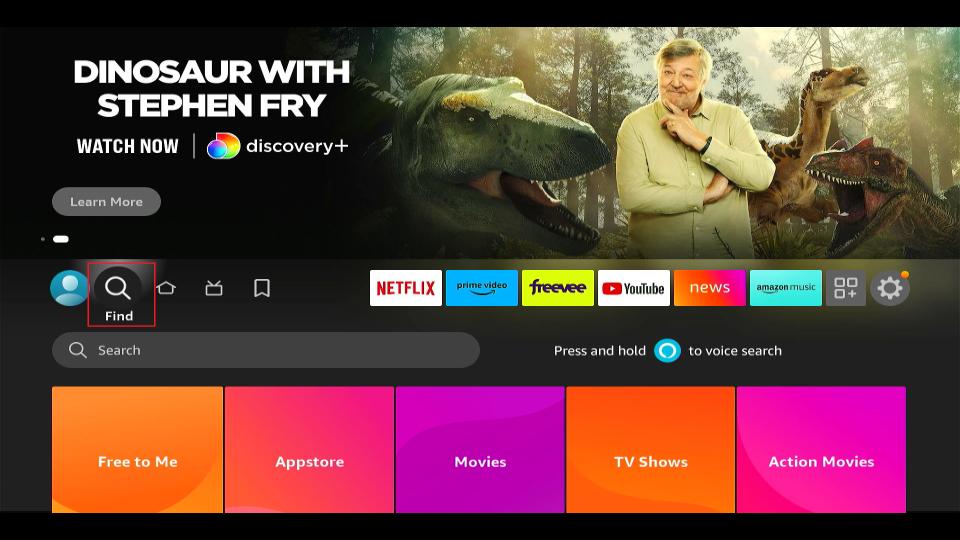
2. Click Search.
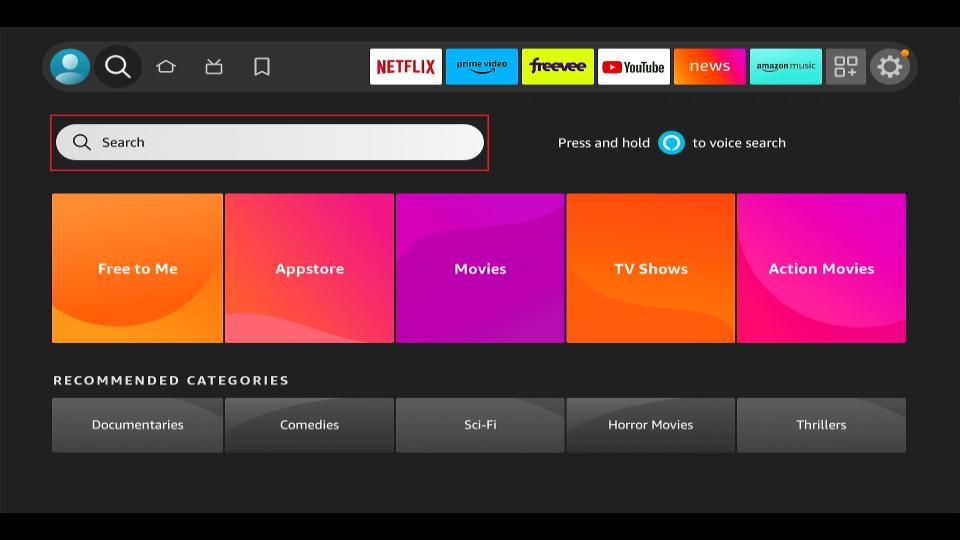
3. Search for and select Downloader.

4. Choose the Downloader app.

5. Click Download.

6. Once the app finishes installing click Open.

7. Return to the home screen and open Settings.

8. Click My Fire TV or Device and Software.

9. Choose Developer options.
**(Please Note if you do not see Developer option you must highlight ABOUT and hit the enter button (Middle Button on remote) 7 times to activate Developer Options) This is a new security feature amazon added (2023)**.
Watch this to show you how to: https://youtu.be/v-tcQLl0pWI?si=tIwyc3KzMLaaxplo

10. Click Install unknown apps.

11. Find the Downloader app and click it.

12. This will turn Unknown Sources to On for the Downloader app. This will enable side-loading on your device.

13. Launch Downloader.

14. Click Allow.

15. Click OK.

16. Type the following URL or Code exactly as shown here: 7263377 and click Go.

17. Wait for file to download.

18. Click Install.

19. When finish Installing Click Done

20. If you click DONE above, you will be back on the Downloader interface. Click Delete.
21. Again, click Delete.
Great! You now have the Jupiter Smart Player app on Firestick and to find it hit the home button on amazon remote control and navigated all the way to the right until you see 3 square and a plus sign  and Jupiter Smart Player app will be in there enjoy!.
22. Enter the login details instruction that we sent you Via Email or Chat
FOR TIVIMATE APP
1. Type the following URL exactly as shown here: https://tivimates.com/tiviapk
and click Go.

2. Wait for file to download.

Wait for the file download to finish
3. Click Install and once the installation is completed. You can open the app.
4. Click “Add Playlist” then choose “Xtream codes“
5. Enter the login details that we sent you Email
How to Install Jupiter Smart Player on onn. 4K Plus, Google TV & Android TV
Welcome to Jupiter Smart TV!
Follow these easy step-by-step instructions to install Jupiter Smart Player on your onn. 4K Plus, onn. Streaming Stick, onn. 4K Pro, Google TV, or compatible Android TV device.
STEP 1: Locate the Apps Section
Turn on your streaming device.
Make sure your device is connected to the internet.
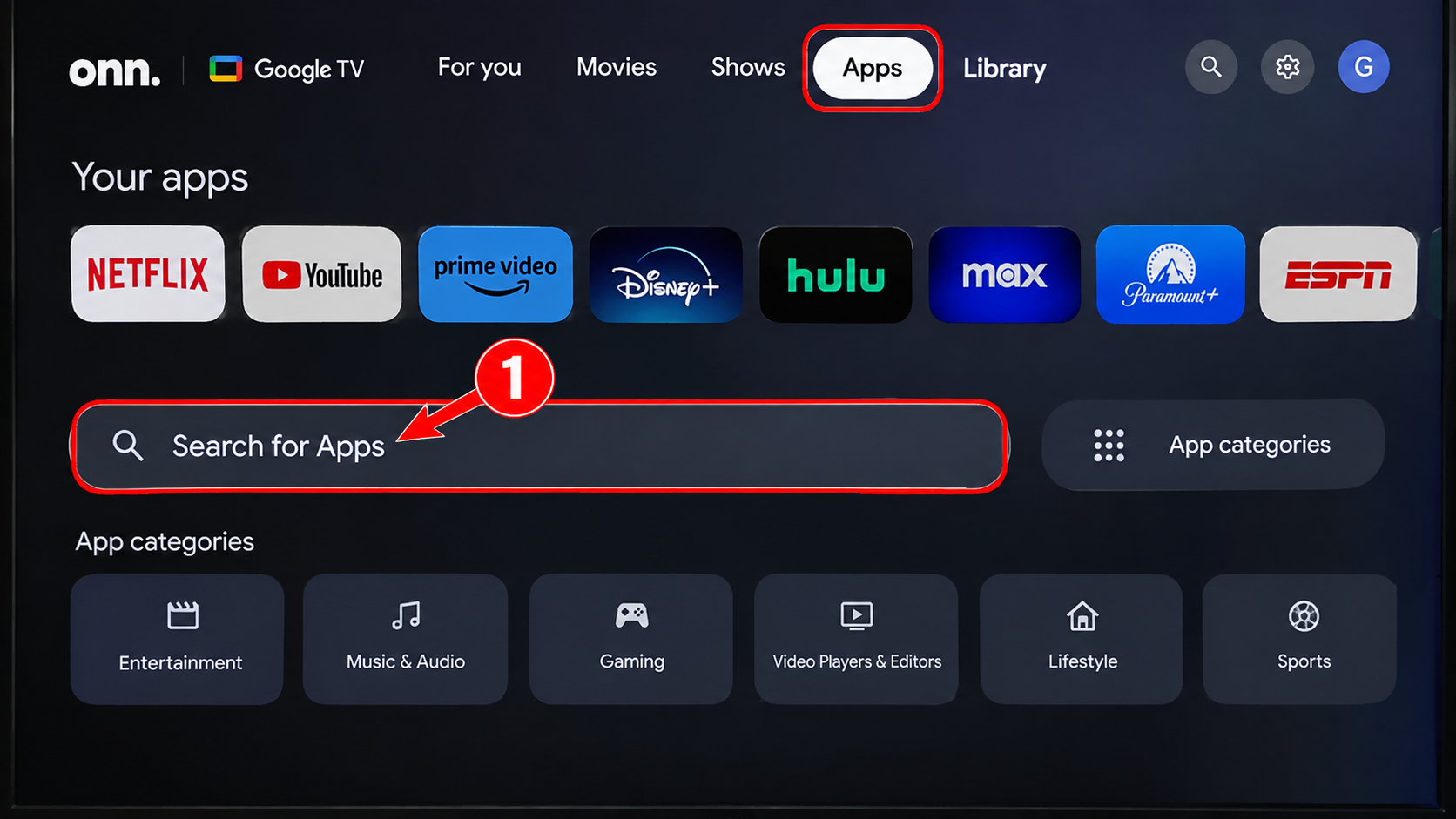
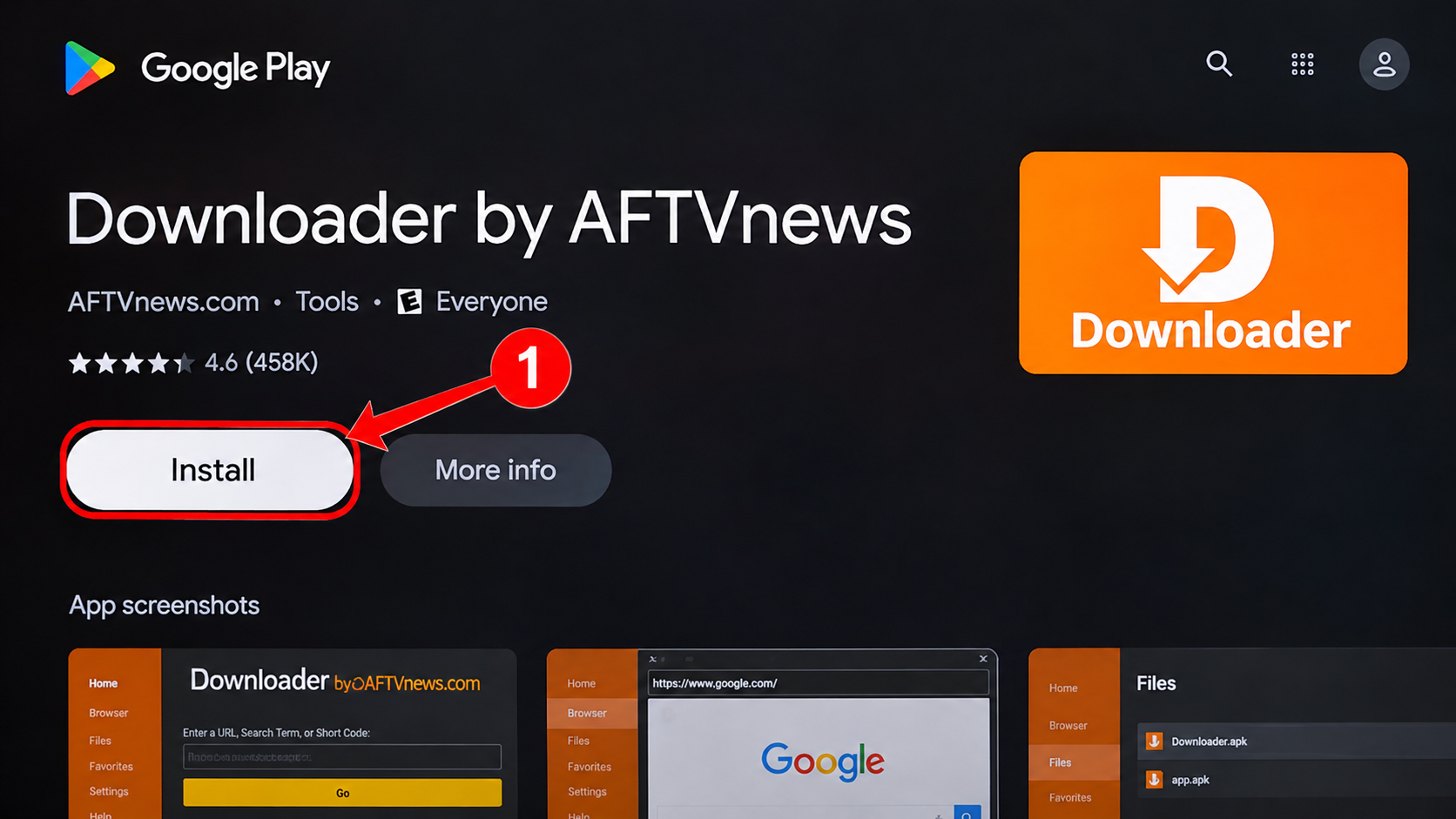
From your Google TV home screen, select Apps.
Select Search for Apps or the magnifying glass icon.
STEP 2: Search for Downloader
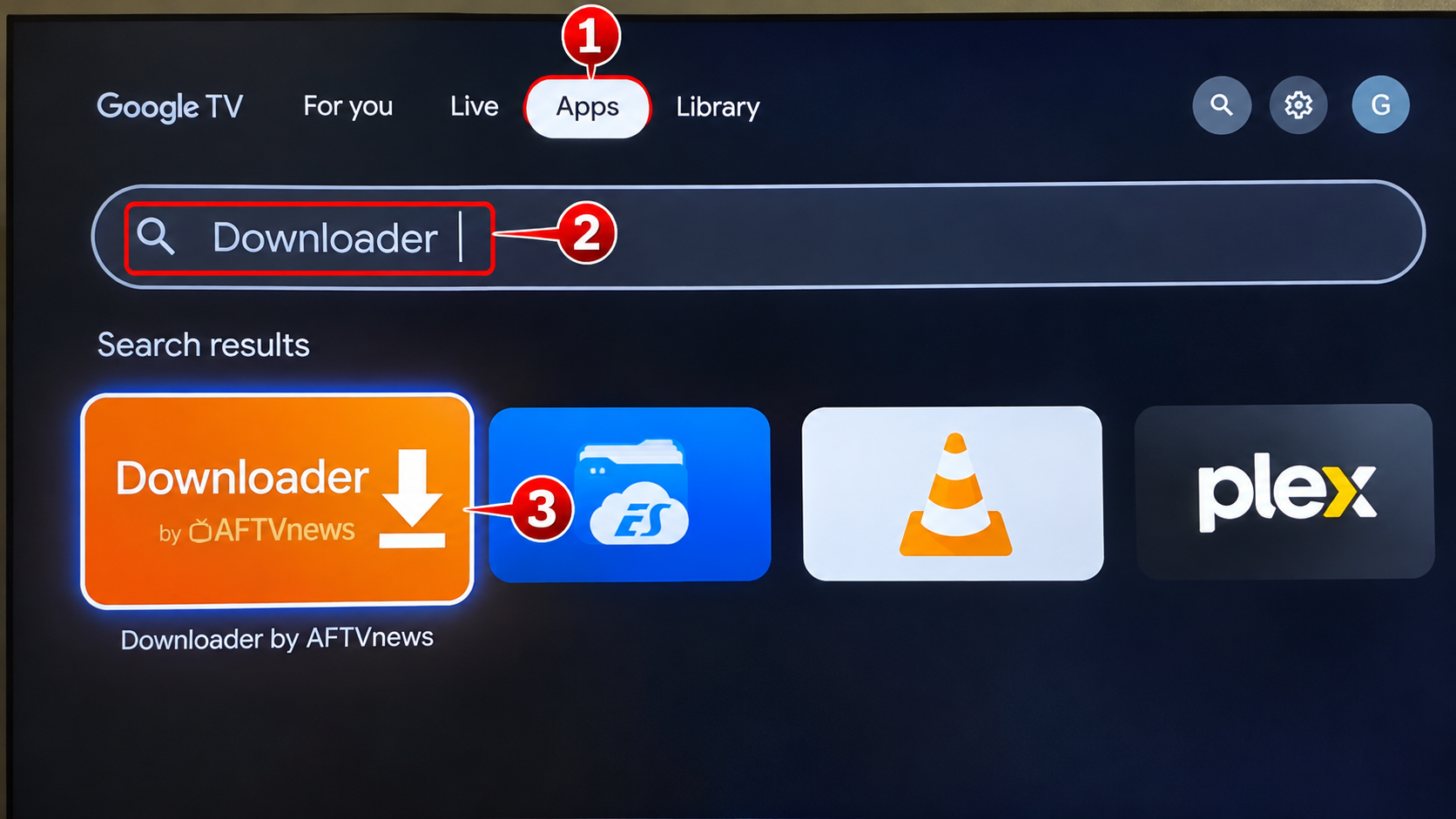
Type Downloader into the search field.
Locate the orange Downloader by AFTVnews application.
Select the application.
STEP 3: Install Downloader
Select Install.
Wait for the installation to complete.
Select Open to launch Downloader.
If asked to allow access to files or media, select Allow.
STEP 4: Download Jupiter Smart Player
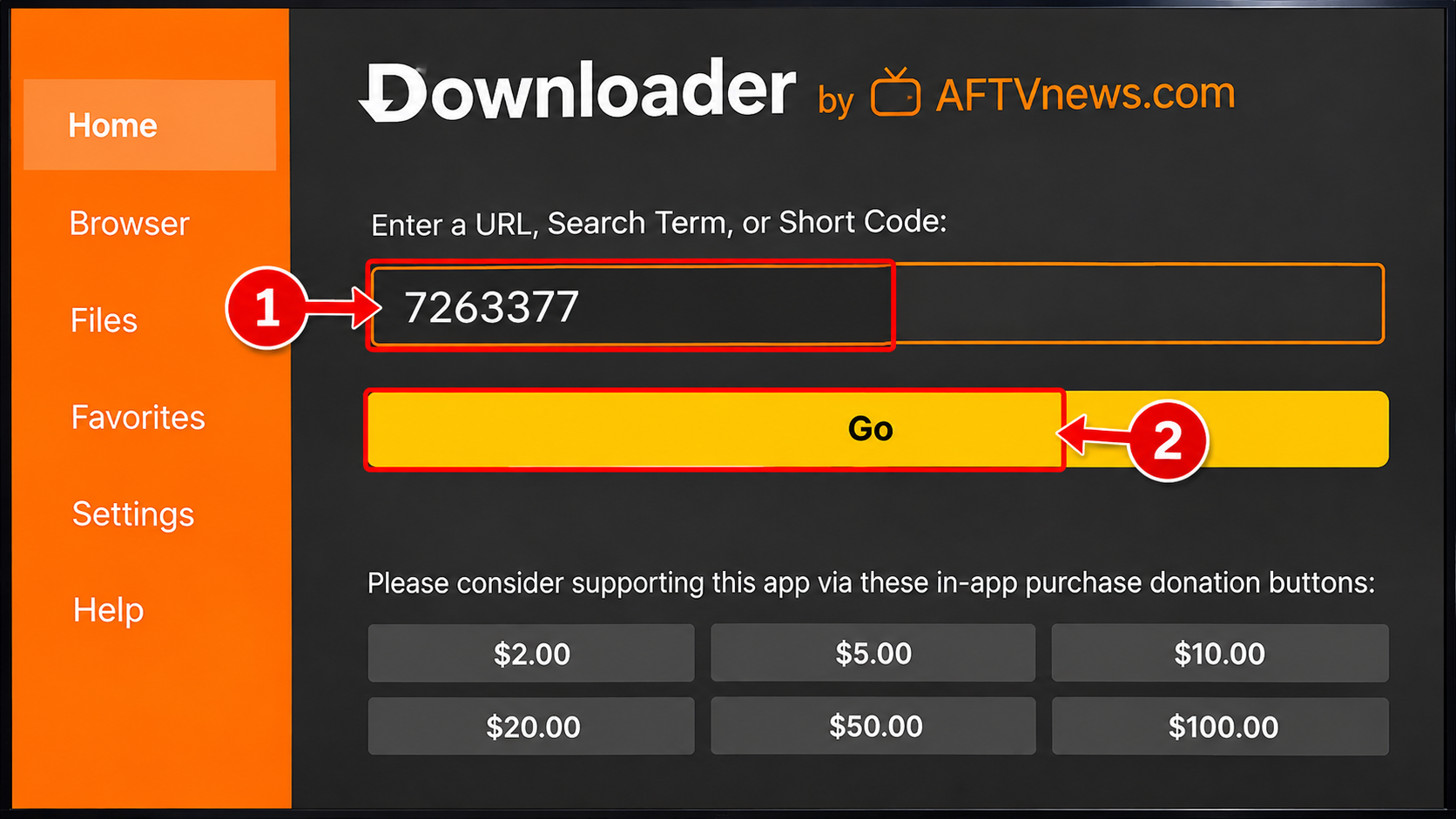
Open the Downloader application.
Select the URL or Short Code search field.
Type the following download code: 7263377
Select the yellow Go button.
Allow the installation file to download.
STEP 5: Allow Installation from Downloader
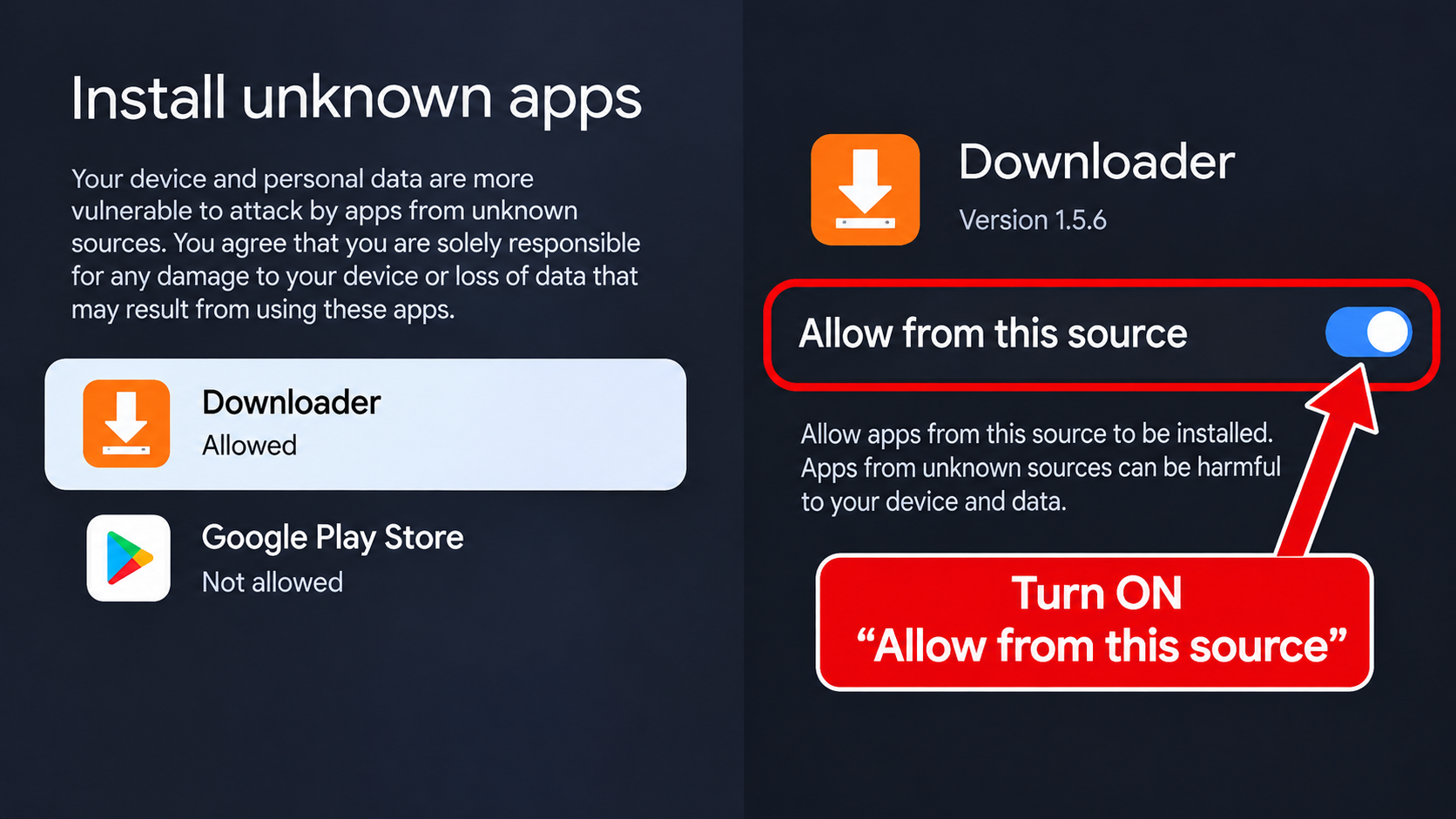
If your device displays a security message about installing unknown applications:
Select Settings from the security message.
Find and select Downloader.
Enable Allow from this source, if available.
Press the Back button to return to Downloader.
Select Install.
IMPORTANT: Google TV and Android TV menus vary by device and software version. If installation is blocked by a security protection, follow the on-screen instructions. Only install apps from sources you trust.
STEP 6: Install Jupiter Smart Player
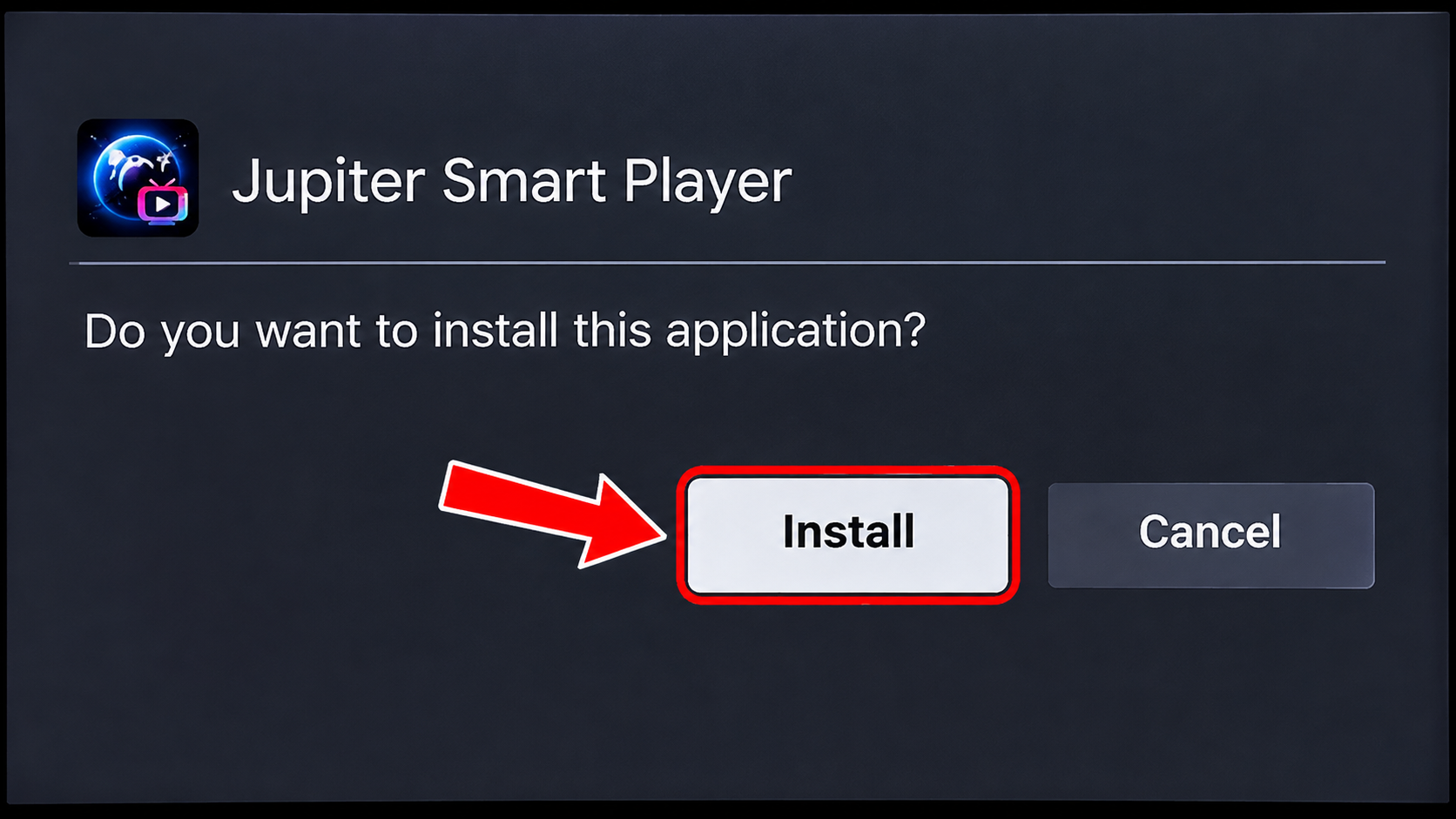
Select Install when the Android installation screen appears.
Wait until the application finishes installing.
Select Open to launch Jupiter Smart Player.
STEP 7: Log In to Jupiter Smart TV
Open the Jupiter Smart Player application, select the appropriate login panel, and follow the instructions provided in your activation email.
Enter the username and password provided in your activation email. ( Your USERNAME IS NOT YOUR EMAIL)
Select the login option.
Allow the channels and programming information to load.
Select Live TV to start watching!
Troubleshooting
Downloader cannot install the application?
Check whether your device has granted Downloader permission to install applications.
Receiving an invalid username or password message?
Verify that your login information matches your activation email exactly.
Cannot locate Jupiter Smart Player after installation?
Go to Settings → Apps → See all apps and locate Jupiter Smart Player.
Need Help?
For additional assistance, visit:
Submit Ticket – Jupiter Smart TV
Thank you for choosing Jupiter Smart TV!
How to setup IPTV on Android with IPTV Smarters Player or Jupiter Smart Player


How To Setup IPTV On Apple/IOS With IPTV Smarters Player
Step 1: Start by downloading IPTV Smarters app from the Apple Store through this URL :
https://apps.apple.com/us/app/smarters-player-lite/id1628995509
or you can search for it on App store
install the app on your IOS device.
Step 2: Open the app once downloaded and Enter the login details.
Step 3: Enter the login details that we have provided you after you get a subscription with us
Now Click on “ADD USER” to proceed to the next section.
Step 4: Wait some seconds.
Step 5: Now click on “Live TV” icon as depicted in the image via a red arrow.
Step 6: Now you must select the channel group that you want to watch and proceed to the next section.
Step 7: Now you must click on the channel name and then double click on the small screen to turn into full screen as the final step.
Step 8: To add EPG no need to add any EPG url, Just click on “Install EPG” .
Done
Far far away, behind the word mountains, far from the countries Vokalia and Consonantia, there live the blind texts. Separated they live in Bookmarksgrove right at the coast
⚠️ IMPORTANT – PLEASE SELECT A COMPATIBLE DEVICE
For the best experience and full technical support, we strongly recommend using the official Jupiter Smart App on a compatible streaming device.
Recommended Devices: Fire TV Stick 4K, Fire TV Cube, NVIDIA SHIELD, onn. 4K Plus, or another reputable Android-based streaming device.
Samsung Smart TVs and Roku devices do not support the official Jupiter Smart App. Third-party apps may be available on some Smart TVs, but Jupiter Smart TV cannot guarantee compatibility or provide full technical support for third-party applications.
Not tech-savvy? We strongly recommend purchasing one of our recommended devices before activating service.
Windows Method :
Download IPTV Smarters app through this URL : https://jupitertelevision.com/IPTVSmartersProSetup-1.1.2.exe
MAC Method :
Download IPTV Smarters app through this URL : https://www.iptvsmarters.com/download?download=mac
http://Jupiterwebtv.com
