
Welcome to Jupiter Smart TV!
Follow these easy step-by-step instructions to install Jupiter Smart Player on your onn. 4K Plus, onn. Streaming Stick, onn. 4K Pro, Google TV, or compatible Android TV device.
STEP 1: Locate the Apps Section
-
Turn on your streaming device.
-
Make sure your device is connected to the internet.
-
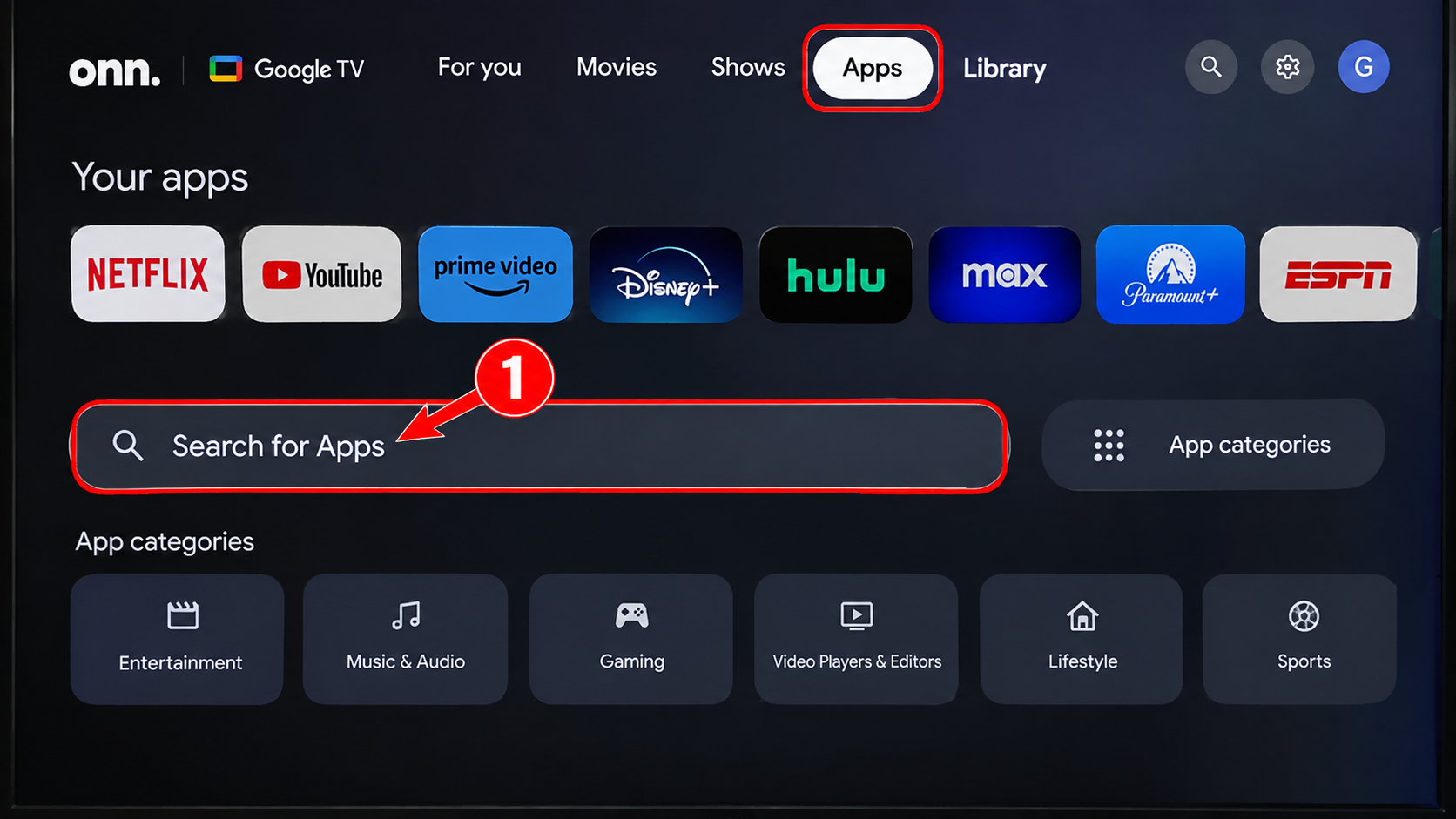
From your Google TV home screen, select Apps.
-
Select Search for Apps or the magnifying glass icon.
STEP 2: Search for Downloader
-
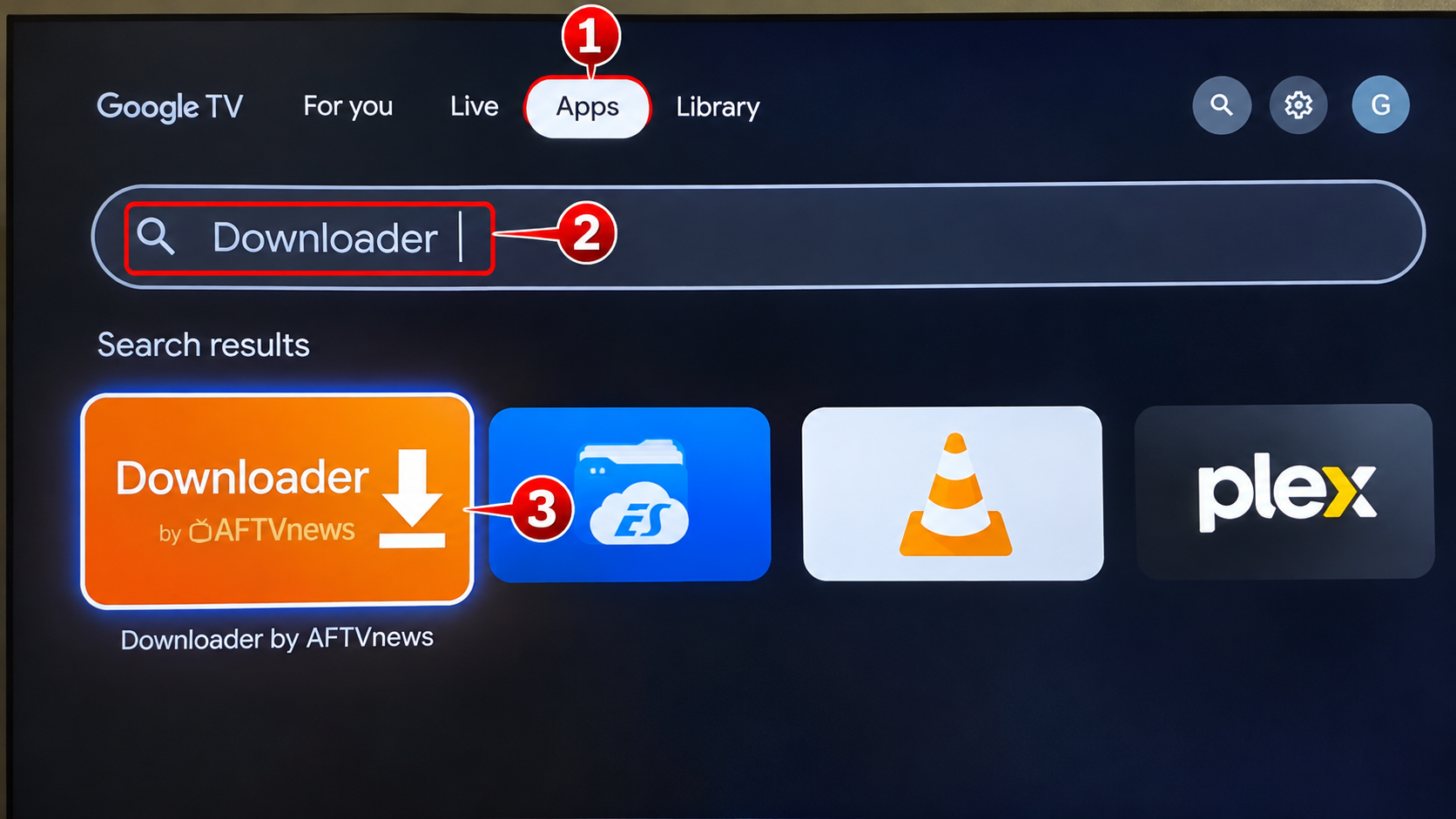
Type Downloader into the search field.
-
Locate the orange Downloader by AFTVnews application.
-
Select the application.
STEP 3: Install Downloader
-
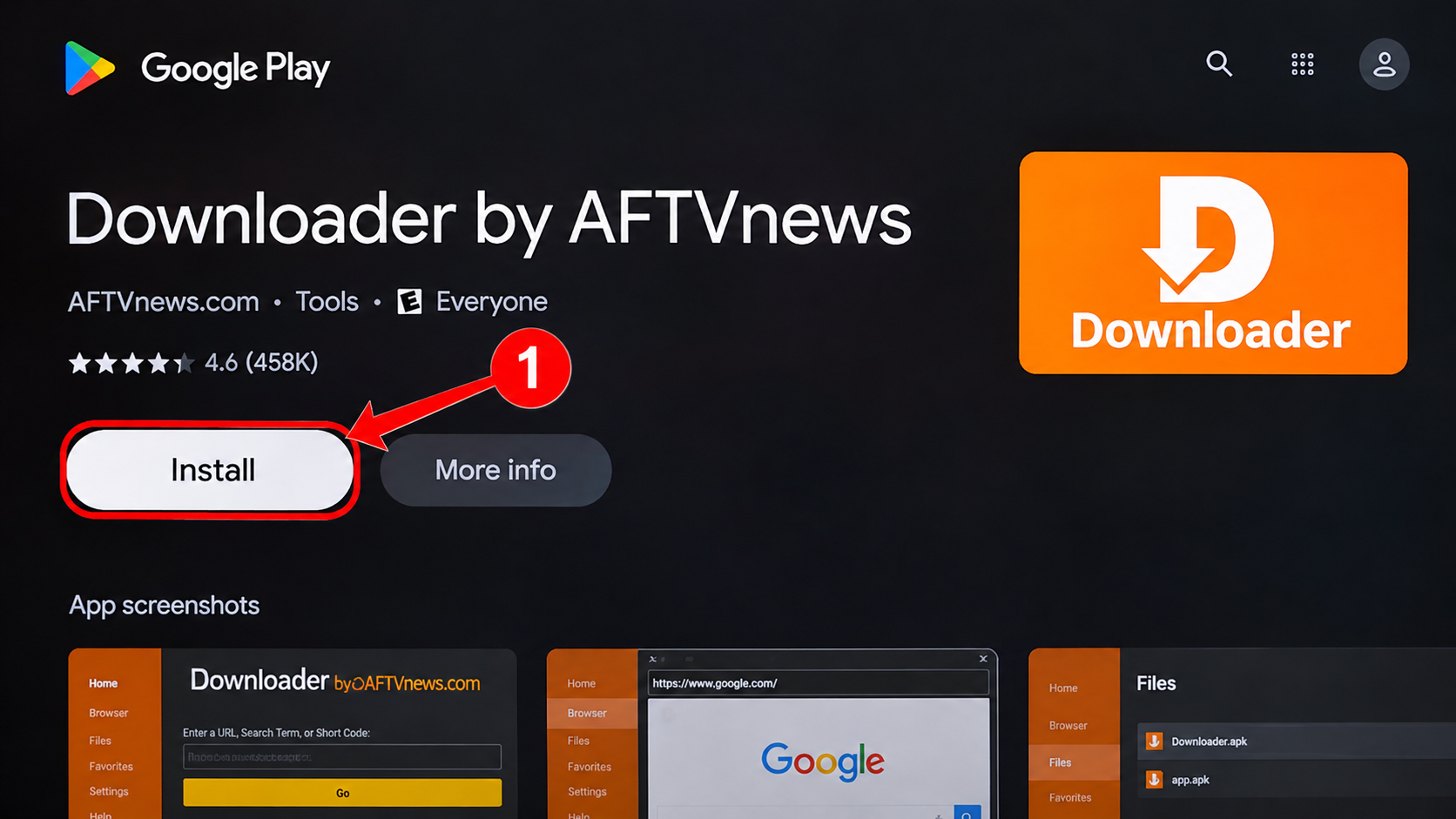
Select Install.
-
Wait for the installation to complete.
-
Select Open to launch Downloader.
-
If asked to allow access to files or media, select Allow.
STEP 4: Download Jupiter Smart Player
-
Open the Downloader application.
-
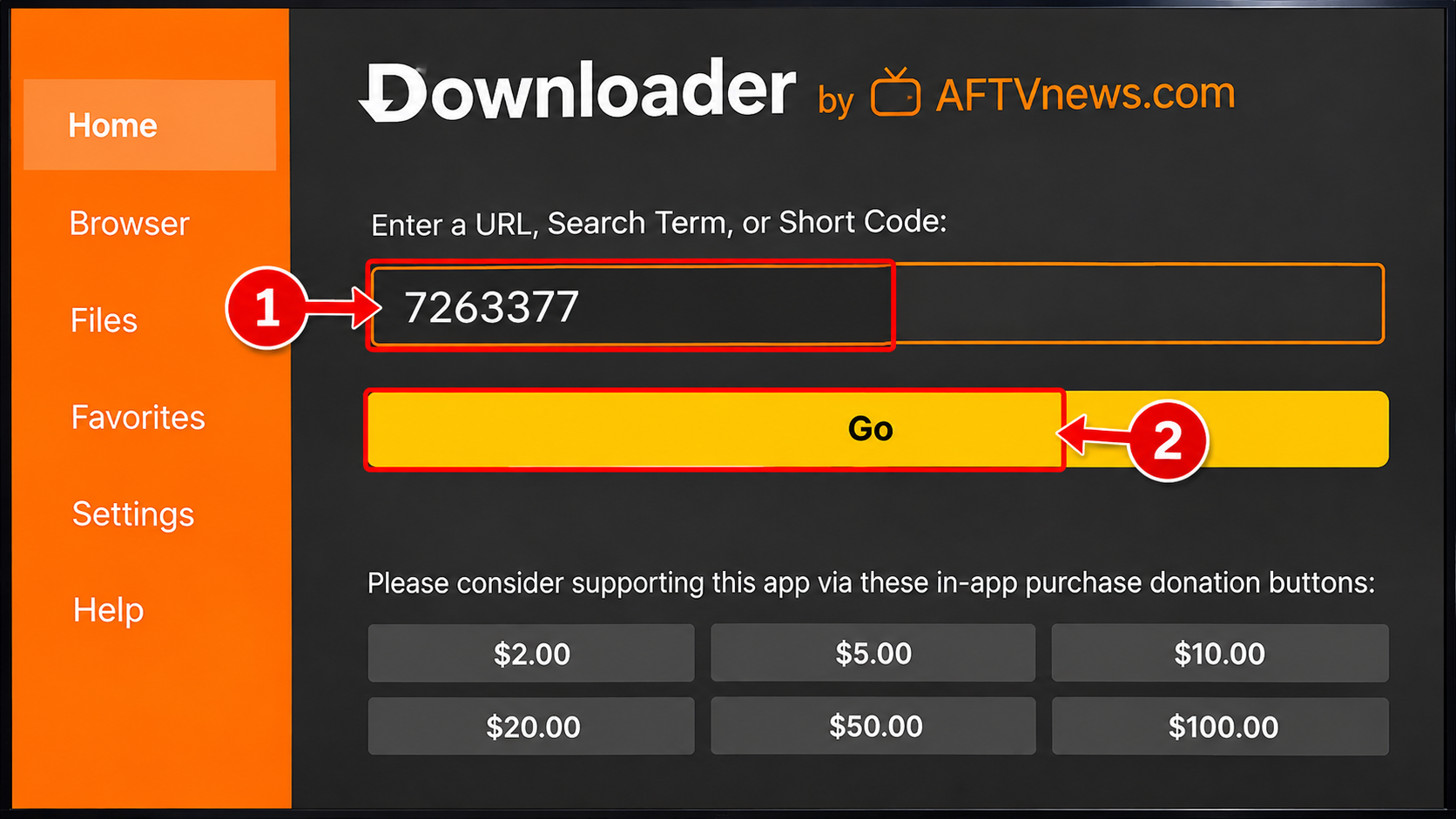
Select the URL or Short Code search field.
-
Type the following download code: 7263377
-
Select the yellow Go button.
-
Allow the installation file to download.
STEP 5: Allow Installation from Downloader
If your device displays a security message about installing unknown applications:
-
Select Settings from the security message.
-
Find and select Downloader.
-
Enable Allow from this source, if available.
-
Press the Back button to return to Downloader.
-
Select Install.
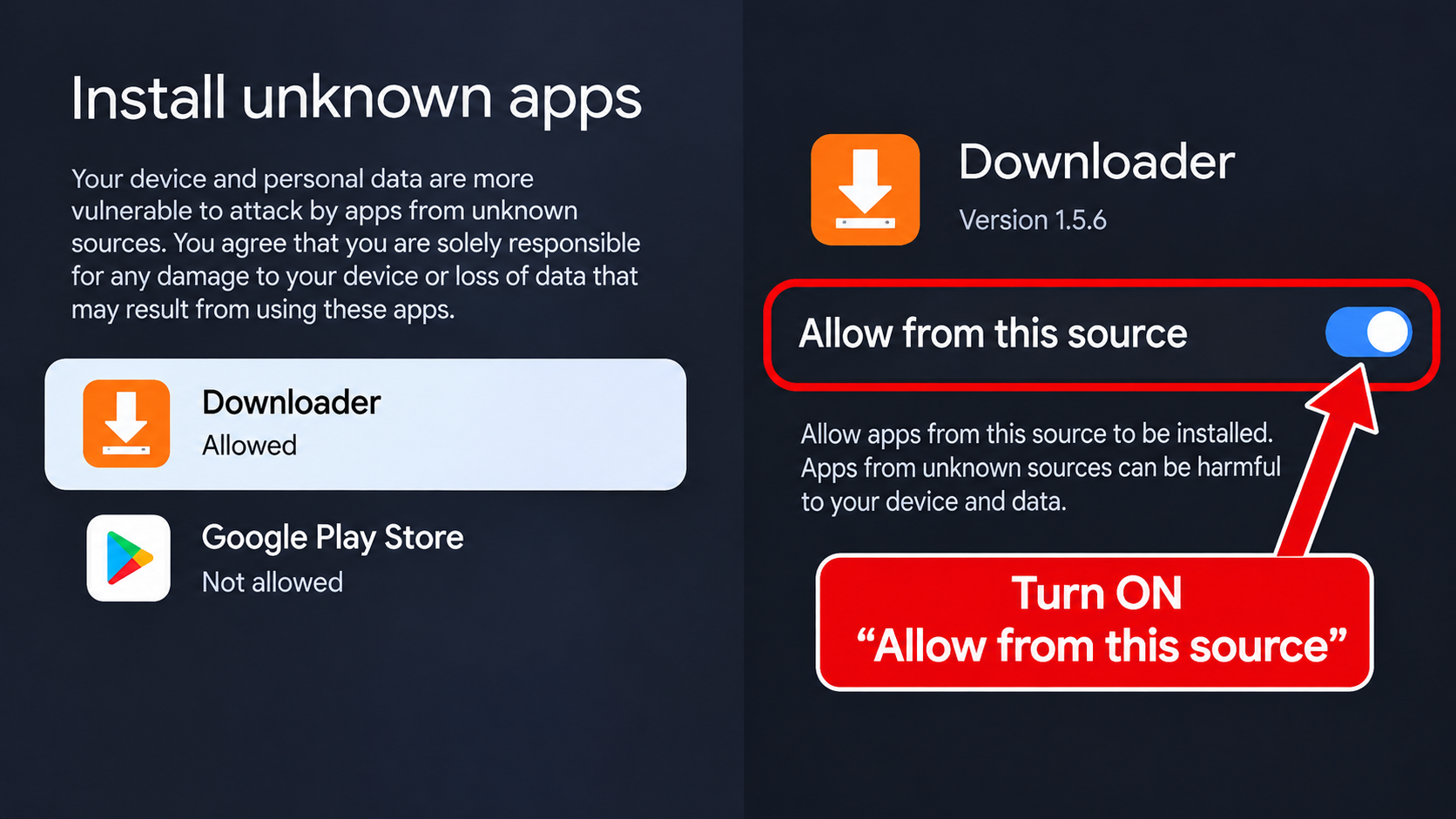
IMPORTANT: Google TV and Android TV menus vary by device and software version. If installation is blocked by a security protection, follow the on-screen instructions. Only install apps from sources you trust.
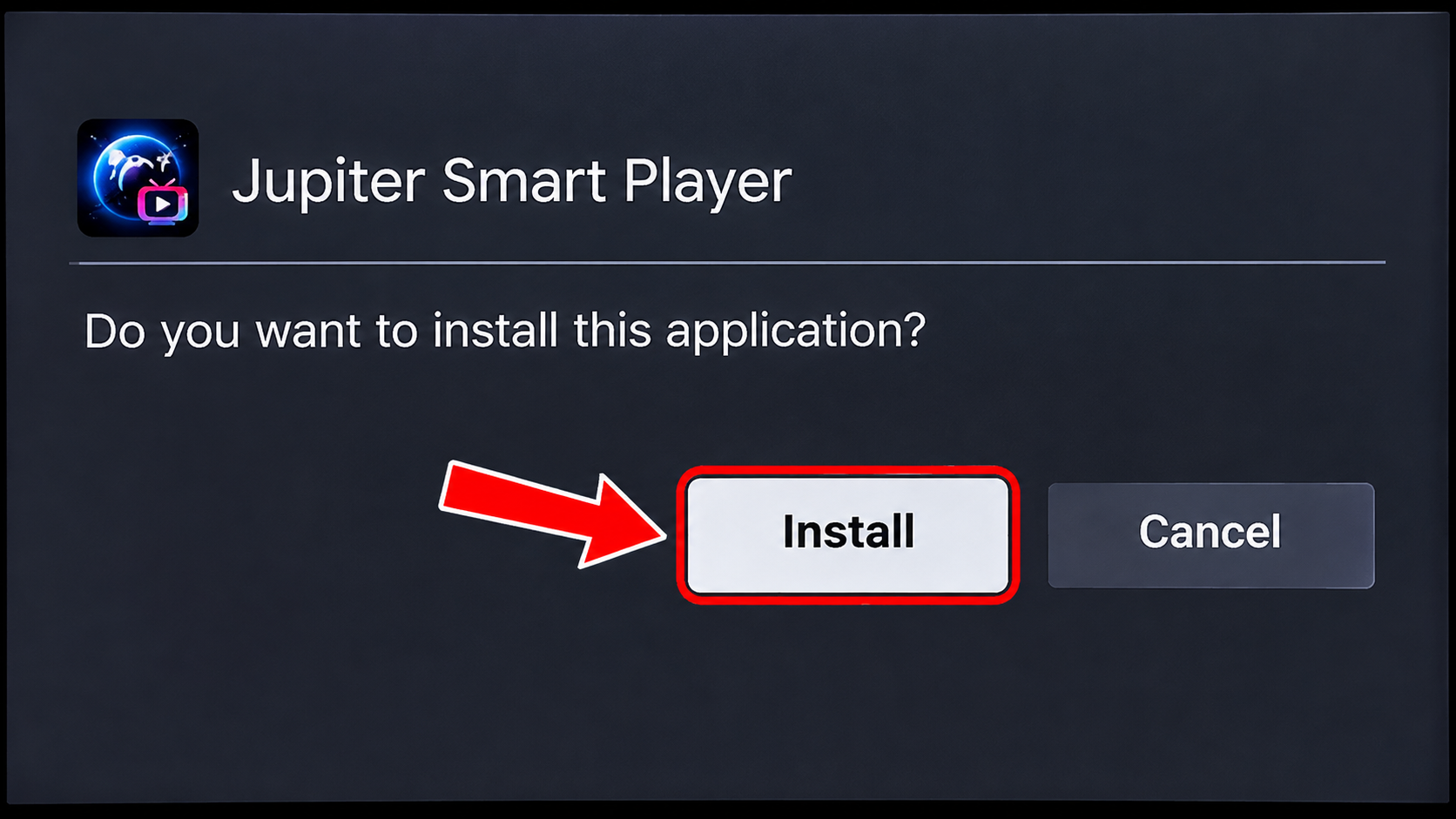
STEP 6: Install Jupiter Smart Player
-
Select Install when the Android installation screen appears.
-
Wait until the application finishes installing.
-
Select Open to launch Jupiter Smart Player.
STEP 7: Log In to Jupiter Smart TV
-
Open the Jupiter Smart Player application, select the appropriate login panel, and follow the instructions provided in your activation email.
-
Enter the username and password provided in your activation email. ( Your USERNAME IS NOT YOUR EMAIL)
-
Select the login option.
-
Allow the channels and programming information to load.
-
Select Live TV to start watching!
Troubleshooting
Downloader cannot install the application?
Check whether your device has granted Downloader permission to install applications.
Receiving an invalid username or password message?
Verify that your login information matches your activation email exactly.
Cannot locate Jupiter Smart Player after installation?
Go to Settings → Apps → See all apps and locate Jupiter Smart Player.
Need Help?
For additional assistance, visit:
Submit Ticket - Jupiter Smart TV
Thank you for choosing Jupiter Smart TV!
